How to Freeze a Frame in CapCut on Mobile and PC in 2026
How to Freeze a Frame in CapCut on Mobile and PC in 2026. Want to pause a moment without stopping your video? A freeze frame lets you hold one image on screen while your edit keeps moving. You can highlight a reaction, give viewers time to read text, or make a funny moment land.
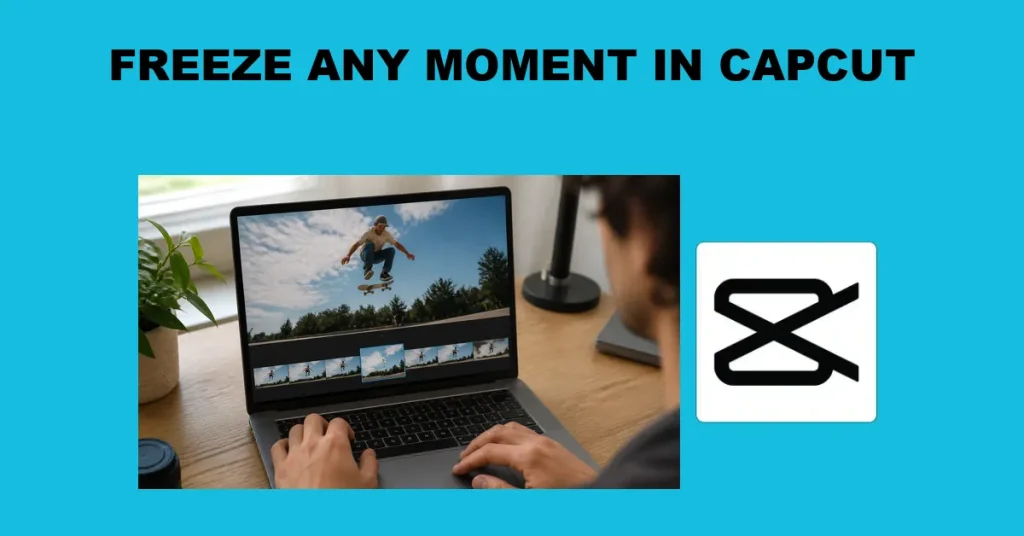
If you are wondering how to freeze a frame in CapCut, this guide walks you through the process on your phone and computer. You will learn how to choose the right moment, create the freeze, and adjust how long it stays on screen. Pick your clip, and let’s get started.
What Does Freeze Frame Do in CapCut?
A freeze frame in CapCut holds one selected moment on screen for a set duration, then lets the video continue afterward. It turns a frame from your footage into a still segment in the edit. The result gives viewers time to notice a detail, read a caption, or absorb a reaction without losing the sequence of events.
This differs from slowing a clip, which keeps the action moving at a reduced speed. It also differs from pausing playback, which only stops the video temporarily while someone watches or edits it. A freeze frame becomes part of the finished video, so viewers see the same held moment during playback.
In sports highlights, a freeze frame can emphasize a jump or the instant before a goal. In tutorials, it can hold an important step while text explains what to do. Reaction edits can use it to linger on a facial expression before the action resumes.
Choose the Exact Frame You Want to Freeze
Before creating a freeze frame in CapCut, locate the exact moment you want to hold. Careful timeline positioning helps capture a clear expression, action, or detail.
- Import footage: Start a project, choose your video from available files or media, and add it to the timeline.
- Select the clip: Tap or click the video segment containing your chosen moment, especially when several clips share the timeline.
- Zoom into the timeline: On mobile, spread two fingers over the timeline. On PC, use the available timeline zoom control.
- Position the playhead: Scrub near the desired moment, then make small adjustments while checking the preview for the exact frame.
- Choose a sharp frame: Avoid frames with motion blur. Check nearby moments for clearer faces, readable text, or more defined details.
Control names and locations can vary by platform and CapCut version. Before applying the freeze effect, confirm that the intended clip is selected and the preview shows your chosen frame.
How to Freeze a Frame in CapCut on Mobile
On Android and iPhone, CapCut can turn a chosen video frame into a still segment. Use the timeline to select the moment, then apply the Freeze tool.
- Open CapCut on your Android phone or iPhone, then open the project containing the video you want to edit.
- Tap the video clip in the timeline to select it and display the available clip editing tools.
- Drag the timeline beneath the playhead until the preview shows the exact frame you want to hold.
- Swipe through the clip tools to find Freeze. If it is not visible, check that the video clip remains selected.
- Tap Freeze to apply the effect, then look for the inserted still segment showing the selected frame in the timeline.
- Select the still segment and drag its edge to adjust its duration, then play across its ending to check the transition.
The inserted segment holds one image while the playhead advances. Preview from just before it through the following footage to confirm the pause ends where motion should resume.
How to Create a Freeze Frame on CapCut PC
Open the project in CapCut on your computer and select the video clip on the timeline. Move the playhead to the exact frame to hold, checking the preview before continuing. Zoom into the timeline if necessary to position the playhead more precisely.
With the clip selected, look for the Freeze control in the editing tools or the clip’s context menu, where available. Apply it to create a still segment at the playhead, then adjust that segment’s duration by dragging its edge. Preview the transition into and out of the freeze.
If Freeze is unavailable, save the desired frame using an available frame export option or capture and crop it to the video area. Split the video at that position, import the saved image, and insert it between the two video segments. Set its duration and match its framing to the surrounding footage.
Adjust Freeze Duration Without Losing Video
Adjust Freeze Duration Without Losing Video
Select the inserted freeze segment in the timeline, then drag its right edge to make the pause longer or shorter. Zoom in on the timeline if the segment is hard to grab. For example, give a funny reaction an extra second without trimming the moving footage on either side. Check that you are resizing the still segment, not shortening a neighboring video clip.
A longer freeze increases the total video length and can push the following action later. Captions, overlays, music, and later edits may not all move with it, so check their timing after each adjustment. A caption might disappear before the freeze ends, or a beat might land before the action resumes. Preview both boundaries: play from just before the freeze starts, then watch through its end. Confirm that the action continues from the expected moment with no missing movement or accidental repeat.
Add Text and Control Audio During the Freeze
Use the frozen moment to highlight a detail or land a joke. Match your overlays to the still segment, then adjust audio separately to get the pause you want.
- Add your caption: Use Text to add a label or reaction, then position it beside your subject.
- Time your overlays: Trim the text or arrow overlay so it starts and ends with the frozen segment.
- Keep music flowing: Leave background music uninterrupted, checking that it covers the extra time added by the freeze.
- Add a sound effect: Place a short effect at the freeze boundary, then lower its volume if it overpowers speech.
- Adjust dialogue separately: Separate speech from the video when necessary, then split and reposition it around the still segment.
Preview the transition into and out of your freeze. A still picture does not automatically create an audio pause, so check dialogue, music, and effects individually.
Fix Missing Freeze Controls and Choppy Results
If Freeze is missing or the result feels choppy, check the selected clip, editing tools, source frame, and audio before rebuilding the pause.
- Check the clip: Select a video clip in the timeline, not an imported image or existing still segment.
- Find the tool: Select the clip first, then check its editing tools rather than effects, transitions, or project settings.
- Choose a clearer frame: Move the playhead to a sharp moment with minimal motion blur before applying Freeze.
- Smooth the audio: Listen across both freeze boundaries, then adjust audio separately to avoid abrupt silence or repeated sounds.
- Remove the freeze: Select the inserted still segment in the timeline and delete it, then check nearby clips and audio.
Choose a sharp source frame and set a deliberate pause length that suits the scene. Finish with a preview to check motion, timing, and audio around the freeze.
Conclusion
Freezing a frame in CapCut is a simple way to highlight a reaction, explain a key moment, or give viewers time to notice a detail. On mobile or PC, choose the moment carefully, adjust the still frame duration, and preview the transition so the pause feels natural.
With How to Freeze a Frame in CapCut on Mobile and PC in 2026, you have a starting point for adding purposeful pauses to your edits. Try the technique on a short clip, keep the timing balanced, and use each freeze frame to support your story.
FAQs
Can I freeze a frame in CapCut without Pro?
Yes, CapCut’s basic Freeze tool is available without Pro. Select a video clip and use Freeze to create a still segment.
Where is the Freeze button in CapCut on mobile?
Select your video clip in the timeline, position the playhead, then swipe through the bottom editing toolbar and tap Freeze.
How do I change the duration of a freeze frame?
Select the freeze frame segment in your timeline, then drag its right edge to make the still image last longer or shorter.
Why does my CapCut freeze frame look blurry?
Blurry freeze frames usually come from motion blur or low resolution footage. Choose a sharper source frame and check export resolution before saving.
How do I keep music playing during a freeze frame?
Keep music on a separate audio track beneath the video. If needed, extend or loop the audio clip to cover the freeze frame.
Can I freeze the last frame of a video in CapCut?
Yes. Move the playhead to the last visible frame, select the video clip, and use Freeze. Adjust the resulting still clip’s duration.