How to Add Vignette in CapCut PC – Brilliant Tips for Eye-Catching Videos 2026
A lot of people like that soft dark border around a video because it makes the main subject stand out more. And, by the way, there is a vignette effect in CapCut PC, though it is not very obvious to many users as it is slightly buried in the menus. Then, when you are editing on CapCut on PC and you feel like adding that clean vignette look to your picture, then there is no need to worry because it is not hard at all.
Let’s just go through the steps slowly, in simple words, without any technical headache.
Why Use Vignette in CapCut PC?
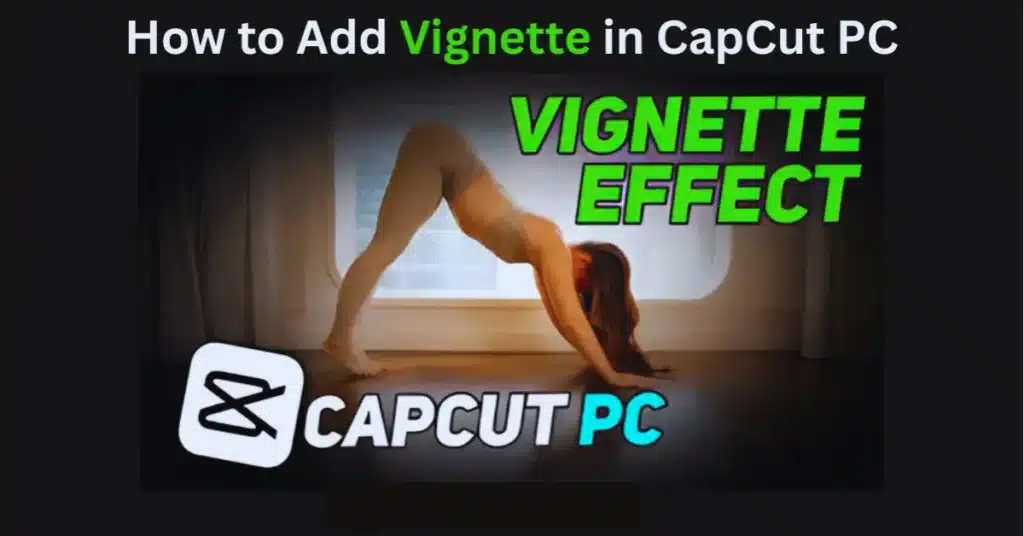
Well, vignette makes your video look focused. It gives the edges a darker tone so the center stays bright. Some creators use it for aesthetic edits, some for gaming videos, and some just to make the footage look less flat.
CapCut PC does it pretty well. Even better if you’re also using CapCut Pro features, but you don’t actually need CapCut Pro APK or anything modded for this one. The normal desktop version of CapCut already includes it.
Step 1: Import Your Video
Open CapCut for PC and drop your clip into the timeline. If you’re using CapCut Old Version for PC, it also works the same.
- open CapCut
- drag video to timeline
- select the clip
That’s it. Simple.
Step 2: Go to “Filters” Section
This is where most people get confused. The vignette is not under “Effects” on PC — it’s under Filters.
- look on the left menu
- click Filters
- scroll down a bit
- find Vignette
If it doesn’t appear, try switching to the latest CapCut for PC version because older builds hide some filters.
Step 3: Adjust the Vignette Style
After you have put the vignette on, you can touch it to get it not to look overwhelming.
CapCut PC gives options like:
- intensity
- softness
- size of the circle
- dark or light tone
- feather
You do not have to make it absolutely perfect. All one has to do is to move the sliders gradually until it appears natural. Too much vignette makes the video feel like an old camera effect, so keep it clean.
Step 4: Add Keyframes (Optional)
Keyframes can be used in case you want the vignette to be different at some point of the video – such as gradually getting darker.
Steps:
- select your clip
- open vignette settings
- click the keyframe diamond icon
- adjust intensity
- move timeline forward
- adjust again
Now your vignette will animate smoothly.
Not required, but some people like the cinematic look.
Step 5: Export Properly to Keep the Vignette Clean
If your final export looks different, it might be because of low export settings. CapCut PC sometimes compresses the video if your settings are low.
Try exporting with:
- 1080p or 4K
- High resolution
- 60fps (if your clip supports it)
CapCut for PC handles vignette pretty well as long as the export is clean. Mods like CapCut Pro APK or CapCut Mod APK are more for mobile users, not for PC, so don’t worry about that here.
Extra Tips for a Better Vignette Look
Just some small things I’ve noticed:
- keep the edges soft so it doesn’t look too dark
- avoid using heavy color filters + vignette together
- use vignette with portrait clips for strong focus
- don’t overdo it on bright daylight footage
Sometimes subtle is better.
Conclusion
It is not complicated at all to add a vignette in CapCut PC as long as you realize where that filter is buried. All this is within Filters menu and once that has been applied you can adjust the intensity and softness to achieve the desired appearance. Vignette can help the video look slightly professional whether you are editing to be uploaded to YouTube, on the Instagram Reels, or even Tik Tok, and even to personal clips.
Nothing sophisticated, a few little clicks and that is it.
FAQs
1. Where is the vignette option in CapCut PC?
It’s under the Filters section on the left menu. Scroll a bit until you find the vignette filter.
2. Can I add vignette in CapCut PC without Pro?
Yes. The vignette filter is available in the free version. No CapCut Pro APK or paid upgrade needed.
3. Why can’t I see the vignette filter?
Maybe you’re using an older CapCut for PC version. Updating usually fixes it.
4. Can I adjust vignette strength?
Yes, you can adjust intensity, softness, and feather using the slider controls.
5. Does vignette affect export quality?
Not really. Only thing to do is to export at high quality such as 1080p or 4K.
6. Can I animate the vignette effect?
Yes, it is possible to add keyframes and fade in or actually fade out during the video.